
Favorites
Pin frequently used folders and apps for one-click access.
Short answer: JoyClick lets you pin frequently used folders and applications as favorites so they are one click away in the right-click menu.
Favorites keep the folders and apps you use most within reach. Instead of navigating through Finder or Spotlight, you can open a pinned folder or launch a pinned app straight from the context menu.
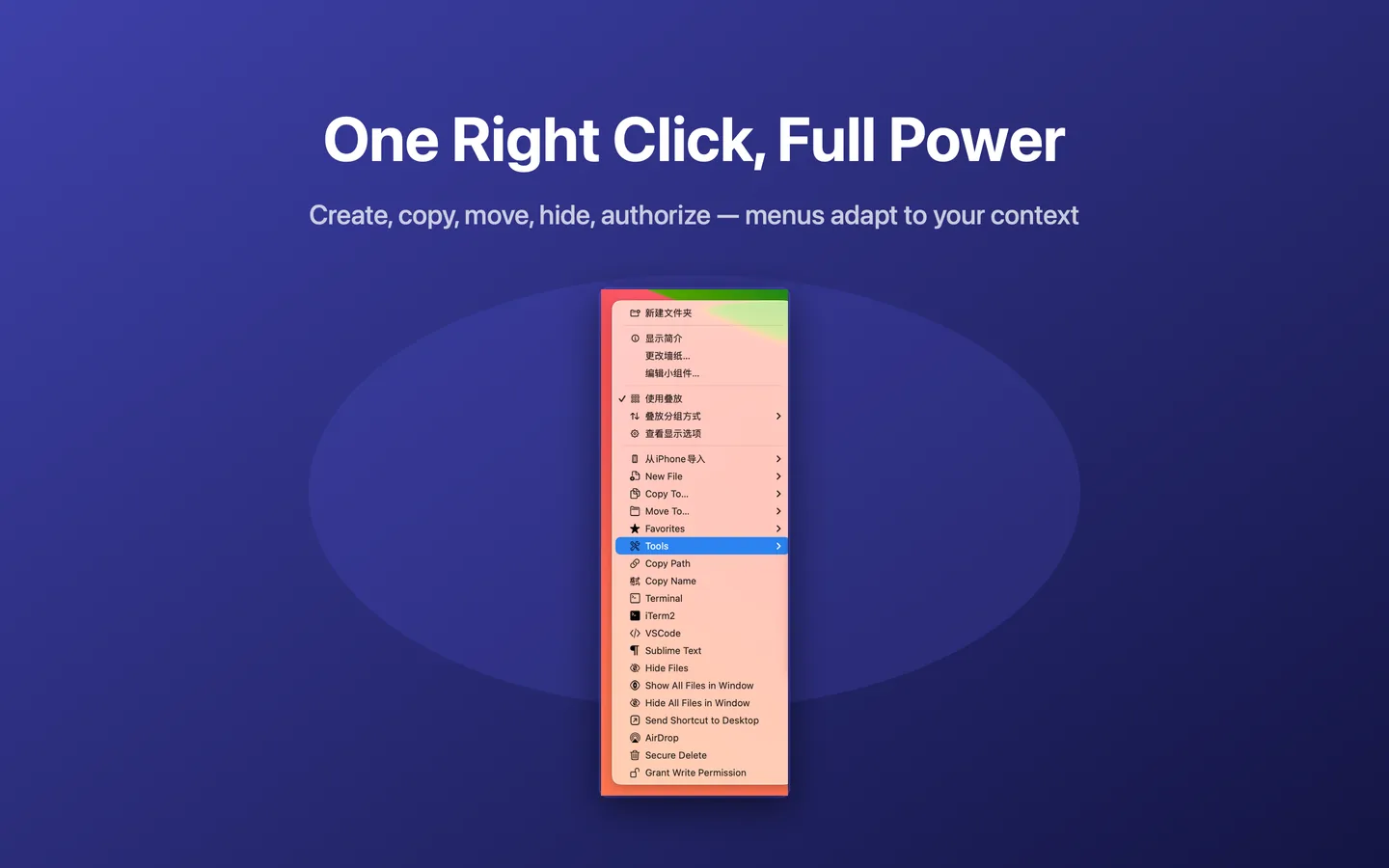
What Favorites can do
- Pin frequently used folders
- Pin frequently used applications
- One-click access from the right-click menu
- Works together with Copy To / Move To destinations
How it works
- Add folders or apps to your Favorites in JoyClick.
- Open the Favorites submenu from the right-click menu.
- Select the folder to open it, or the app to launch it.
When to use it
- Jumping straight to a project, downloads or archive folder.
- Launching an app you use constantly without using the Dock.
- Reducing the number of steps to reach a working folder.
Availability and limitations
Favorites is part of JoyClick, a macOS utility that requires macOS 14.0+. Some actions require granting JoyClick permission to the folders it works in. Available actions may depend on the selected file type and the applications installed on your Mac.
Frequently Asked Questions
What can I add to Favorites?
You can pin frequently used folders and applications for one-click access.
Do Favorites work with Copy To and Move To?
Yes. Favorite destinations are used by the Copy To and Move To actions as well.
Try Favorites on your Mac
Download JoyClick - Right-Click Tools on the Mac App Store. Requires macOS 14.0+, $8.99 one-time purchase, privacy: Data Not Collected.