
Disk Space
Visualize folder usage and spot large files fast.
Short answer: JoyClick includes a disk space view that visualizes folder usage so you can identify large folders and find storage-heavy locations quickly.
Disk Space shows where storage is going by visualizing folder usage. It helps you spot the largest folders and files first, so you know what to review before deleting anything.
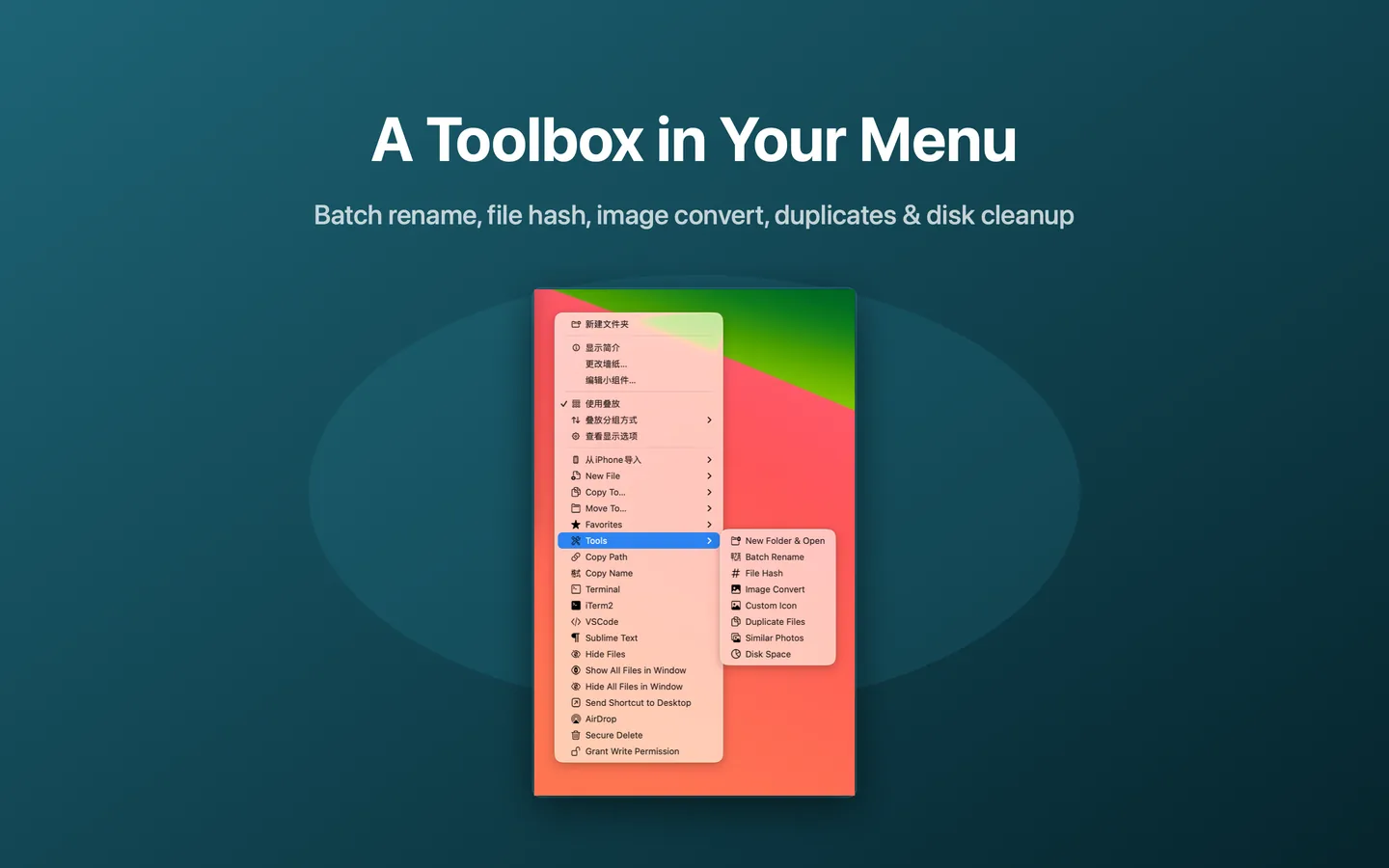
What Disk Space can do
- Visualize folder usage
- Identify large folders
- Spot storage-heavy locations
- Find large files quickly
How it works
- Choose Tools → Disk Space from the right-click menu.
- Select a folder or location to analyze.
- Review the visualization to see which folders take the most space.
- Drill into large folders to find the biggest items.
When to use it
- Your Mac is running low on storage.
- You want to know what is taking up space before deleting anything.
- You are planning to archive or move large folders.
Availability and limitations
Disk Space is part of JoyClick, a macOS utility that requires macOS 14.0+. Some actions require granting JoyClick permission to the folders it works in. Available actions may depend on the selected file type and the applications installed on your Mac.
Frequently Asked Questions
What does Disk Space show?
Disk Space visualizes folder usage so you can see which folders and locations take up the most storage.
Does Disk Space delete anything?
No. It helps you find the largest folders and files so you can decide what to remove.
Try Disk Space on your Mac
Download JoyClick - Right-Click Tools on the Mac App Store. Requires macOS 14.0+, $8.99 one-time purchase, privacy: Data Not Collected.