
Permissions
JoyClick works on the folders you authorize, so you stay in control of what it can access.
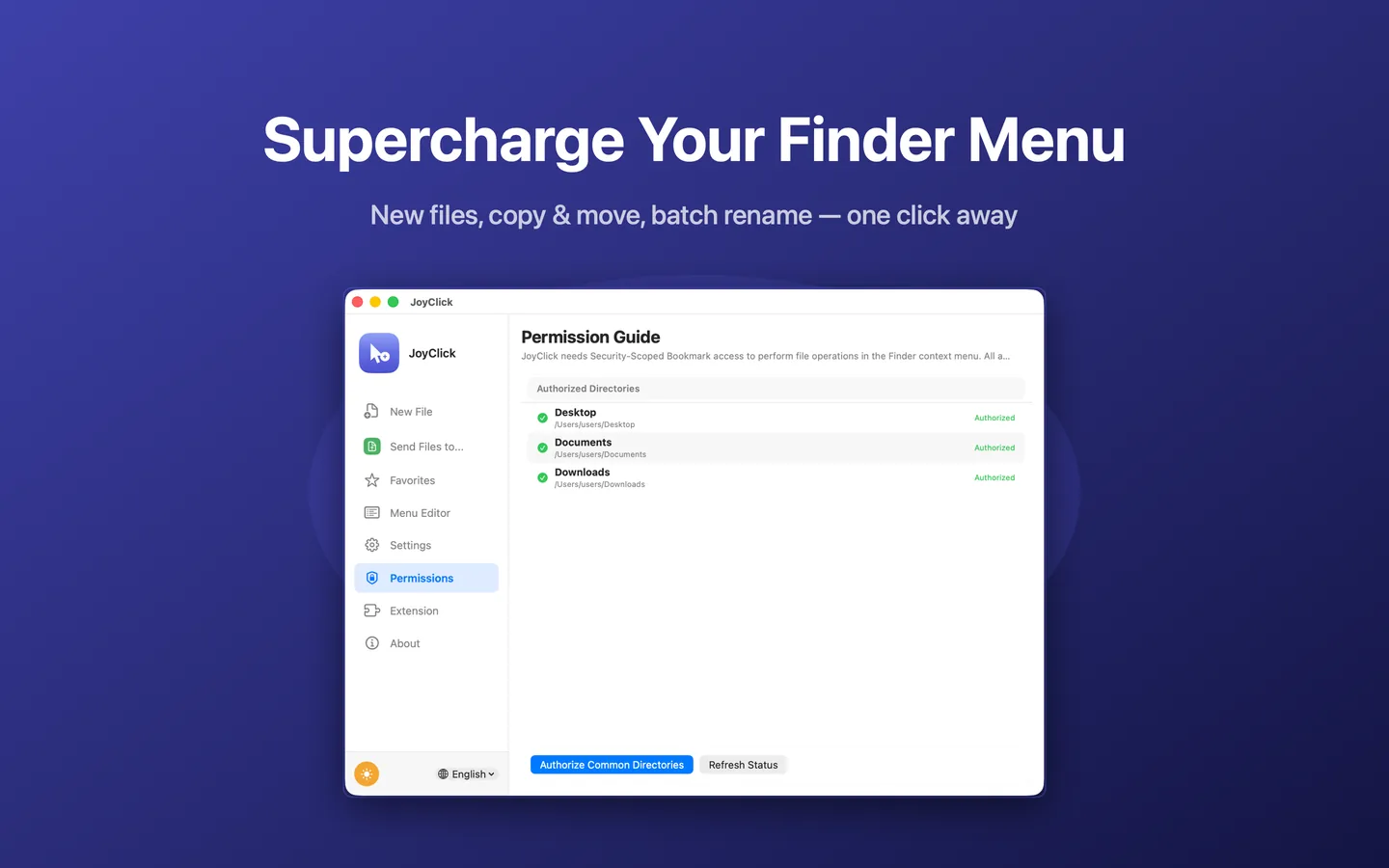
Short answer: JoyClick needs access to the folders it works in. When you open the app, it shows a permission guide where you authorize specific folders such as Desktop, Documents and Downloads. You can review and change this access at any time.
Why JoyClick needs permission
macOS protects your files. To create, rename, copy, move or analyze files in a folder, an app must have permission to that folder. JoyClick asks for access to the folders you choose rather than assuming access to your whole disk.
Authorizing folders
- Open JoyClick and go to the Permissions section.
- Choose the common folders you want to authorize, such as Desktop, Documents and Downloads.
- Confirm the prompt so JoyClick can work in those folders.
You can refresh the status to see which folders are currently authorized.
Changing access later
You can revisit the Permissions section to review and change which folders are authorized. Revoking access to a folder prevents JoyClick from performing actions in it.
Ready to speed up file management on your Mac?
Download JoyClick - Right-Click Tools on the Mac App Store. Requires macOS 14.0+, $8.99 one-time purchase, privacy: Data Not Collected.